How To Export Your Libby Reading History
Libby keeps a timeline of every book you borrow, and it can save it as a spreadsheet. Spinebloom turns that file into your shelf.
The Short Answer
In Libby, open Shelf, then Timeline. Tap Actions, then Export Timeline, then Spreadsheet, and save the file. Choose it in Spinebloom: each book comes in once, with its dates.
How do you export your Libby reading history?
- In Libby, tap Shelf, then Timeline at the top.
- Want only part of it? Set a filter first: the export keeps it.
- Tap Actions, then Export Timeline.
- Choose Spreadsheet to save the file to your phone. Table makes a web page instead.
What is in the Libby export?
One row for each borrow and each return, with the title, author, ISBN and date.
How do you bring it into Spinebloom?
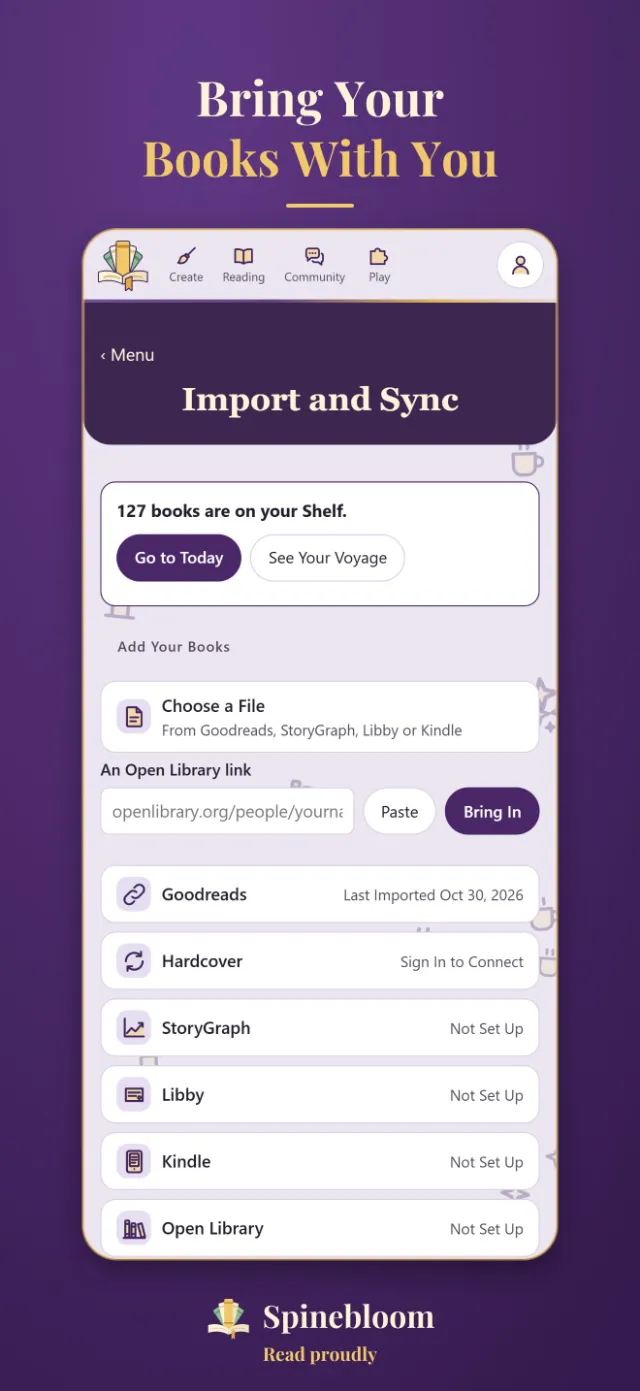
- In Spinebloom: Menu → Settings → Your Data → Import And Sync, then Libby.
- Leave “Count returned books as read” ticked, or untick it if you return books you didn’t finish.
- Tap Choose A File and pick the spreadsheet.
What does Spinebloom do with it?
Each book comes in once, however many times you borrowed it. A returned book counts as read on the day you returned it, a book you still have is reading, and a hold is want to read.
If It Doesn’t Work
- Can’t find Timeline? It’s at the top of Shelf, or at the bottom in older versions of Libby.
- A web page instead of a file? You chose Table. Export again and choose Spreadsheet.
- A book you read before Libby? Add it on Reading → Today by searching for it.
Questions
Does Spinebloom connect to my library card?
No. It reads the file you choose. Nothing is sent to Libby or your library.
Can I import a newer file later?
Yes. Books you already have aren’t added twice.
Sources
Checked November 2, 2026. We make Spinebloom, so we kept this to facts. Something out of date? Email [email protected].
Libby is a trademark of OverDrive, Inc. Spinebloom isn’t affiliated with OverDrive.